IOPS Studio
Experimental Feature
IOPS Studio is experimental. It may contain bugs or undergo breaking changes in future releases. Please report any issues you encounter.
IOPS Studio is a local web UI for driving IOPS end to end: connect to a target (your laptop or an HPC cluster over SSH), build a benchmark config from a form, run it, and view the results, all from your browser.
Overview
Studio runs as a small local web server and does its work through one interactive shell per target, the same terminal you see on the right of the screen. Connecting to a cluster is just an ssh session inside that terminal, so everything works exactly as it would by hand, and if a command fails you are already in the right shell to fix it. Because it uses the one already-authenticated channel, Studio also works on locked-down login nodes that only accept an interactive password or 2FA.
What Studio gives you:
- Setups - saved targets (local or SSH host) with a Python environment and workdir.
- A visual config builder - the full IOPS YAML schema as an intuitive form, beside a live YAML editor.
- Resilient runs - benchmarks run inside
screenand survive a dropped connection; reattach any time. - Integrated results - browse a target’s runs, view the HTML report in-app, edit the report config and regenerate, or pull results back to your machine.
- Multiple terminals - keep several targets connected at once, one tab each.
Prerequisites
Studio needs the optional web-UI dependency, NiceGUI:
pip install nicegui
If you launch Studio without it, a friendly message explains how to install it.
Launching
iops studio
This starts the server and opens your browser at http://127.0.0.1:8080.
Options:
--host ADDR- address to bind (default:127.0.0.1)--port PORT- port to serve on (default:8080)--no-browser- do not open a browser automatically
Studio serves only on
127.0.0.1by default, so it is reachable only from your machine.
To see what Studio is doing step by step (every command it sends, exit codes, transfers), launch with debug logging:
iops studio --log-level DEBUG
Step 1 - Your setups
On launch you land on the setups hub. A setup is a saved target: where IOPS runs (local or an SSH host), which Python environment to use, and the workdir to run from. Each card offers use (▶), edit (✎) and delete.

The first time, the list is empty and Studio takes you straight into the wizard. Otherwise click Add setup to create a new one.
Step 2 - Add a setup
The wizard walks three steps in the left pane, driving everything through the terminal on the right.
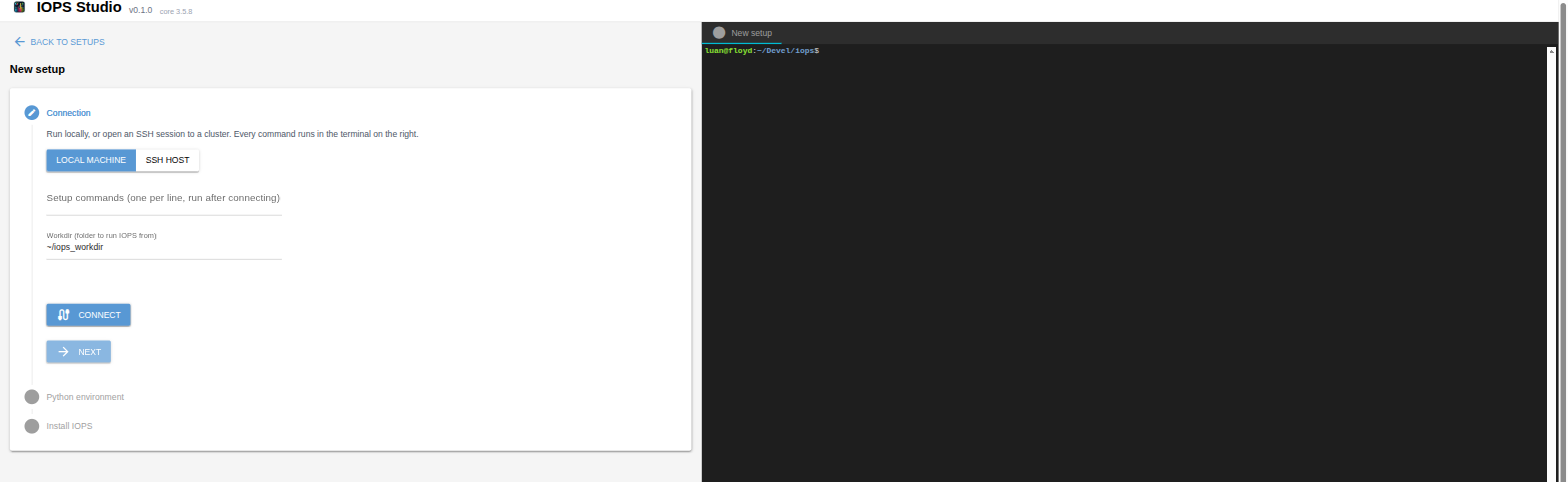
- Connection - choose Local machine or an SSH host from your
~/.ssh/config. Optionally add setup commands (e.g.module load python3/3.12,export PATH=...) that run right after connecting, and set the workdir IOPS runs from. Click Connect; for SSH, authenticate in the terminal if prompted, then Verify. - Python environment - Discover environments on the target and pick one, or create a new virtualenv.
- Install IOPS - Studio installs IOPS with
pip, falling back to an offline wheelhouse transferred through the terminal for hosts with no network. Give the setup a name and Finish.
The setup is saved locally under ~/.config/iops/. Only its durable identity is stored (name, target, interpreter path, workdir, setup commands); nothing secret.
Step 3 - Select a setup
Picking a setup validates it live (re-probing the interpreter and IOPS) and opens its ready view: a summary, the validation status, a Results panel, and the configs saved for this target.
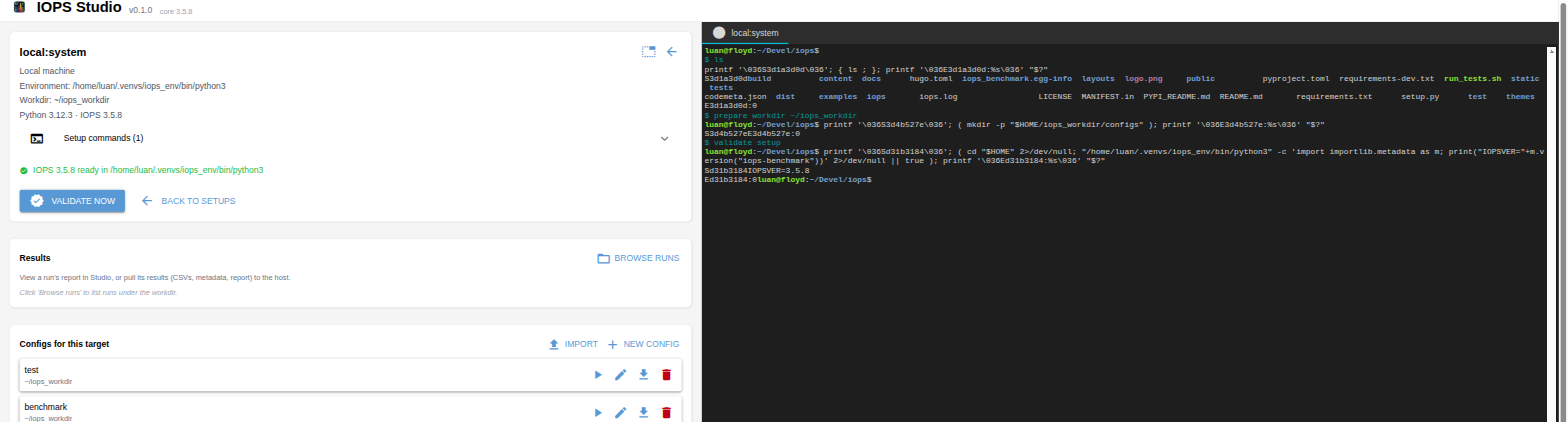
The terminal on the right is this target’s live session. You can type into it directly at any time.
Step 4 - Build a config
Click New config (or Edit on an existing one) to open the config builder, the heart of Studio. A left rail lists the sections; each shows its fields in the middle pane, with the YAML kept in sync on the right.
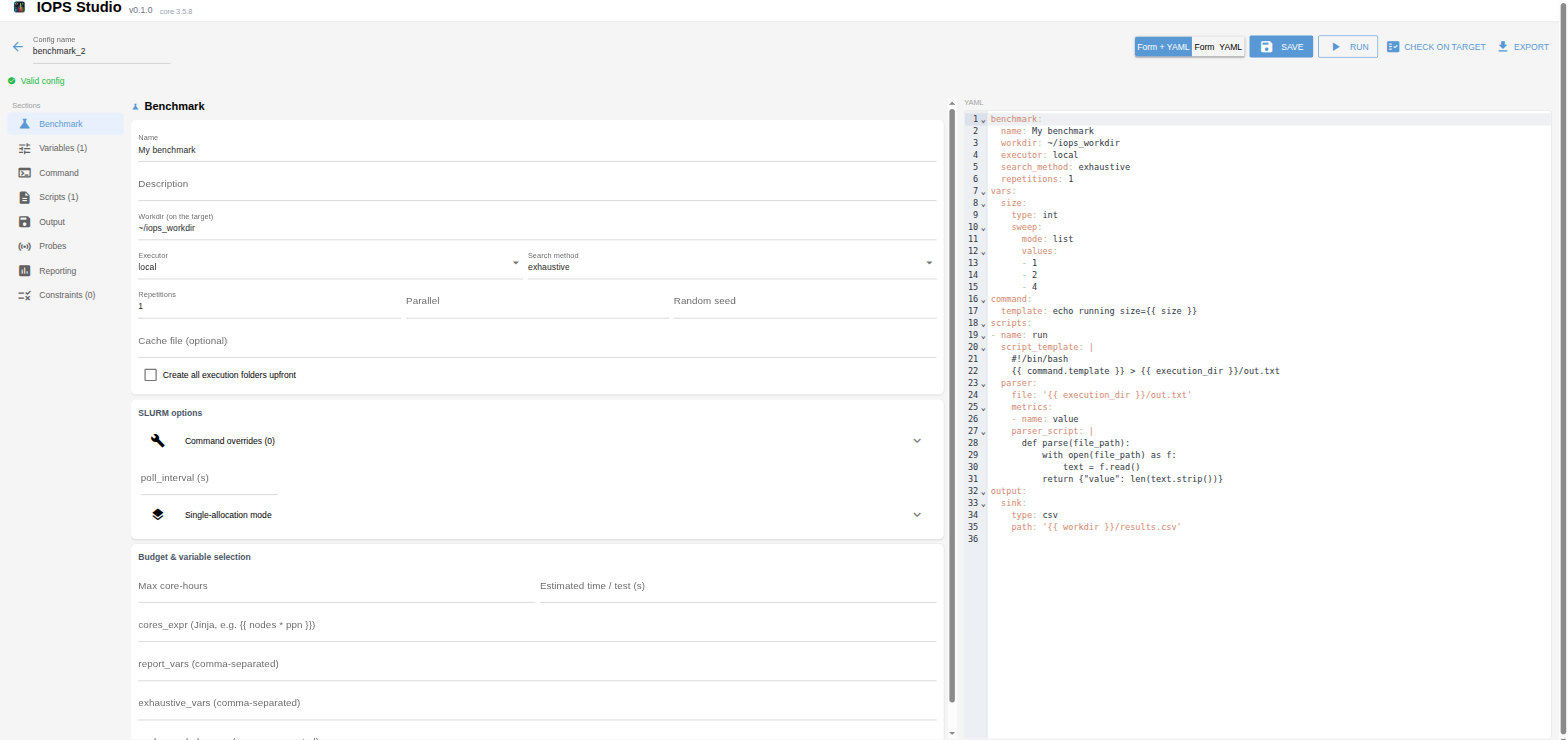
- The form covers every option IOPS accepts: benchmark settings, SLURM options and single-allocation mode, budget and core-hours, variables (sweeps, expressions, adaptive probing, escalating values), command, scripts, output sink, probes, and the full reporting block (sections, plots, gallery, log axes).
- The two panes stay in sync both ways: edit a field and the YAML updates; edit the YAML and the form rebuilds.
- The header toggle switches between Form + YAML (default), Form only, and YAML only.
- Save, Run, Check on target (runs
iops check), and Export (write the YAML to a file on the host) are in the header.
Script templates and parser code get language-aware editors: bash highlighting for script_template, Python for parser_script.
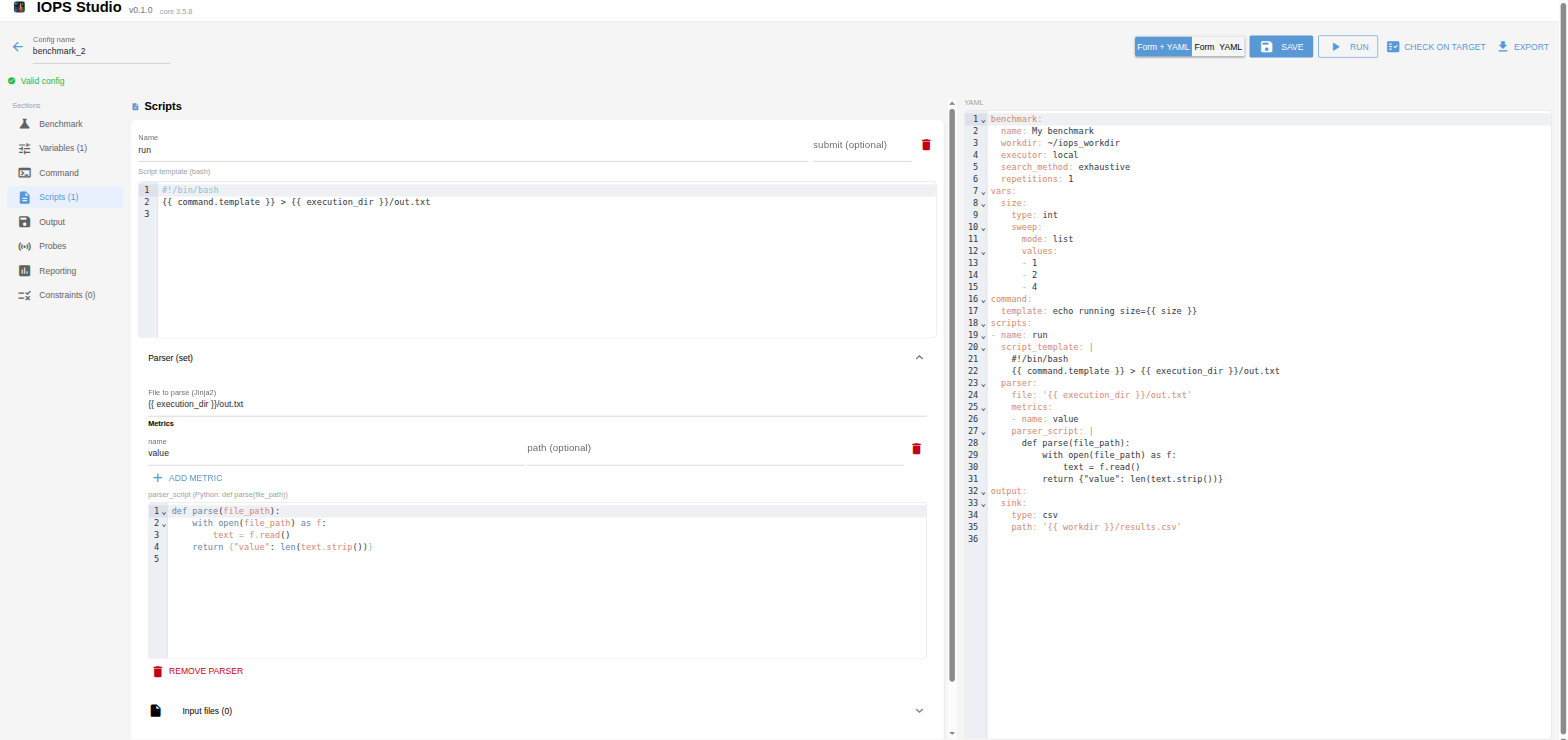
You can also import an existing YAML from the host (it is copied into Studio’s library, leaving the original untouched).
Step 5 - Run it
Click Run (from a config card or the builder header). Studio asks which iops run flags to use:
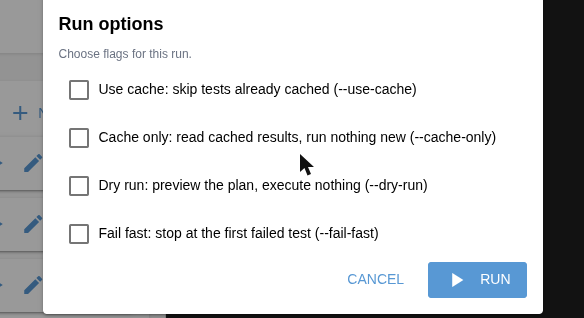
- Use cache (
--use-cache) - skip tests already cached - Cache only (
--cache-only) - read cached results, run nothing new - Dry run (
--dry-run) - preview the plan, execute nothing - Fail fast (
--fail-fast) - stop at the first failed test
Studio writes the config to the target’s workdir and runs it inside a screen session, then attaches you to it live. If the connection drops, the run keeps going; reattach it from the Active runs list in the ready view (Studio remembers which login node it runs on and hops back). Detach any time with Ctrl-A D.
Step 6 - View and customize results
In the ready view, Browse runs lists the completed runs under the workdir. For any run you can:
- View report - Studio runs
iops report, pulls the HTML back, and shows it in an integrated viewer (charts render offline).
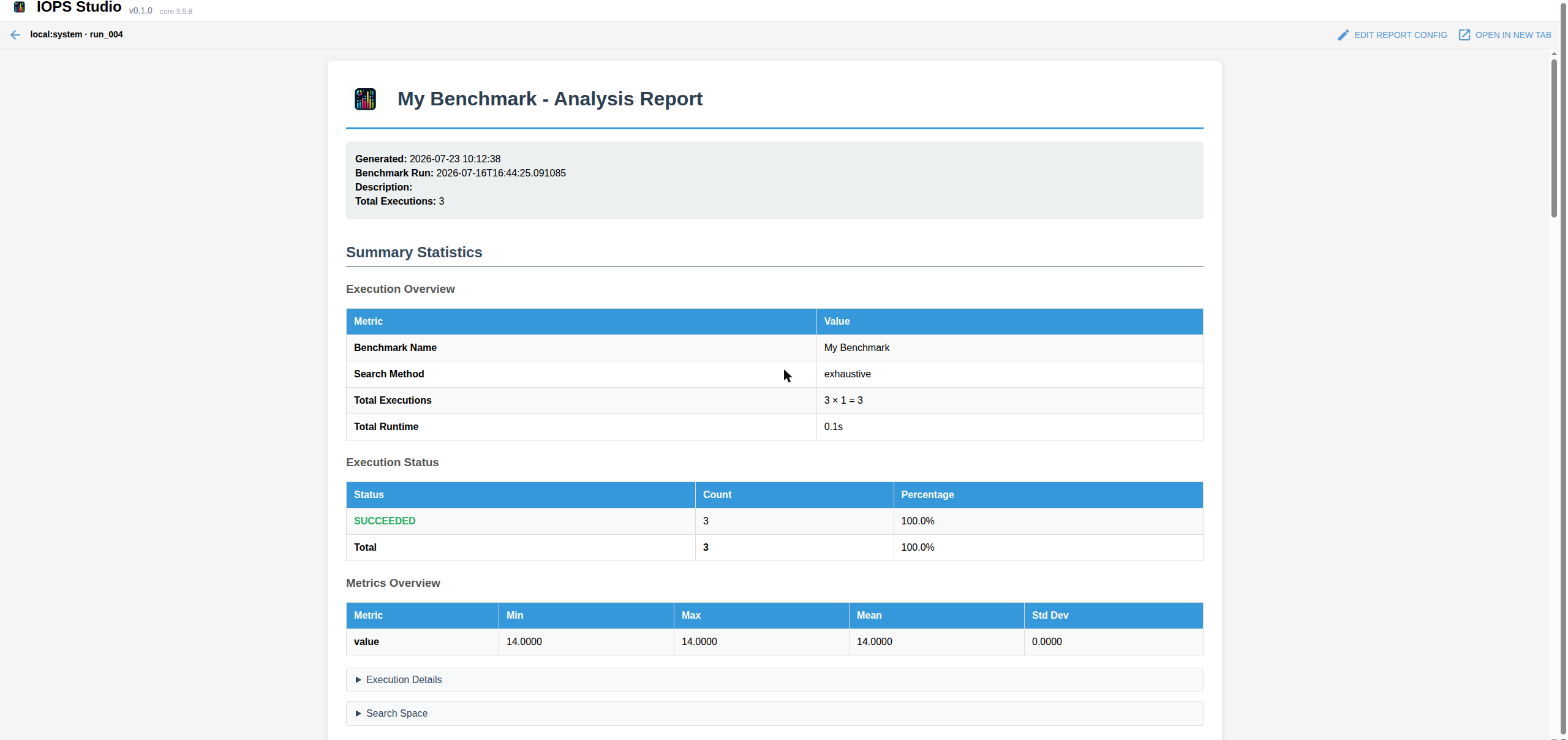
- Edit report config - from the report viewer, open the run’s
report_config.yamlin a YAML editor, tweak sections, plots or axes, and Save & regenerate to rebuild the report in place. - Pull results - bring a run’s small artifacts (results CSV, metadata, report, logs) back to a folder on your machine. Raw scratch data is deliberately excluded, so the transfer stays small.
Working with multiple targets
Selecting another setup opens a second terminal tab without disconnecting the first, so you can keep several targets connected at once. Switching tabs syncs the left pane to that target. Each tab shows a status dot; if a connection drops, only that tab is affected and offers a Reconnect.
Where things are stored
Studio keeps a little state locally under ~/.config/iops/:
studio.json- saved setupsstudio-configs.json- your saved benchmark configs (per setup)studio-runs.json- trackedscreenruns (so they can be reattached)
Pulled reports are cached under ~/.cache/iops-studio/. None of this contains secrets, only identifiers and paths.
Limitations
As an experimental feature, Studio has some rough edges:
- It targets Linux hosts with a POSIX shell;
screenis used for resilient runs (a non-resilient fallback is used whenscreenis absent). - Live terminal sessions are per browser tab and are not restored across a page reload (screen-wrapped runs on the target survive regardless).
- A few rarely-used, free-form config keys are edited on the YAML pane rather than the form.
Please report issues so the feature can mature.