Exploring Executions
IOPS provides tools to explore, search, and inspect execution folders after running benchmarks, useful for large parameter sweeps where you need to find specific configurations or investigate failures. For the full flag reference, see the CLI guide.
Table of Contents
- Finding Executions
- Filtering Executions
- Advanced Options
- Watch Mode
- IOPS Metadata Files
- Inspecting Archives
- Archiving Workdirs
Finding Executions
Use the find command to locate and display execution folders with their parameters:
iops find /path/to/workdir
The find command works with four types of paths:
- Run root directory - Contains
__iops_index.json - Workdir with multiple runs - Contains
run_001/,run_002/, etc. - Specific execution folder - Contains
__iops_params.json - Tar archive - Created by
iops archive create(supports.tar.gz,.tar.bz2,.tar.xz,.tar)
List All Executions in a Run
iops find ./workdir/run_001
Output example:
Benchmark: IOR Performance Study
Found 12 execution(s)

Path           Status      nodes  ppn  block_size
exec_001       SUCCEEDED   1      4    1024
exec_002       SUCCEEDED   1      4    4096
exec_003       FAILED      1      8    1024
...
List Executions from Multiple Runs
Pointing to a workdir containing multiple run_XXX folders displays executions from all runs:
iops find ./workdir
Output:
=== run_001 ===
Benchmark: IOR Performance Study
Found 12 execution(s)
...

=== run_002 ===
Benchmark: IOR Performance Study
Found 8 execution(s)
...
Show Details for Specific Execution
iops find ./workdir/run_001/exec_042
Output:
Execution: exec_042
Path: /absolute/path/to/workdir/run_001/exec_042

Parameters:
  block_size: 4096
  nodes: 4
  ppn: 8

Repetitions: 3
  repetition_1/
  repetition_2/
  repetition_3/
Filtering Executions
Filters are specified as positional arguments in the format VAR=VALUE:
# Find specific configuration
iops find ./workdir/run_001 nodes=8 ppn=16 block_size=4096

# Search across all runs in workdir
iops find ./workdir nodes=4
Numbers and booleans match loosely: nodes=4 matches a stored value of 4.0, and flag=true matches True (case-insensitive).
Advanced Options
Show Full Parameter Values
By default, IOPS truncates parameter values at 30 characters. Use --full to show complete values (useful for long string parameters like file paths):
iops find ./workdir/run_001 --full
Hide Columns
Hide specific columns to focus on relevant parameters. Column names are comma-separated without spaces:
iops find ./workdir/run_001 --hide block_size,transfer_size,command
Filter by Status
iops find ./workdir/run_001 --status FAILED
Status values:
SUCCEEDED- Execution completed successfullyFAILED- Execution failed with non-zero exit codeERROR- Execution encountered an error during setupSKIPPED- Execution was skipped (constraint violation or planner selection)UNKNOWN- Status could not be determinedPENDING- Execution has not yet completed
Filter by Cache Status
When using --use-cache with iops run, some results may come from the cache rather than being freshly executed:
# Show only cached results
iops find ./workdir/run_001 --cached yes

# Show only freshly executed results (not from cache)
iops find ./workdir/run_001 --cached no
Cache indicators in output:
SUCCEEDED [C]- Result was retrieved from cacheSUCCEEDED [C*]- Partially cached (some repetitions from cache, others executed)SUCCEEDED- Freshly executed (not from cache)
Combining Options
Options can be combined with parameter filters:
iops find ./workdir/run_001 nodes=8 --status FAILED --full --show-command
Watch Mode
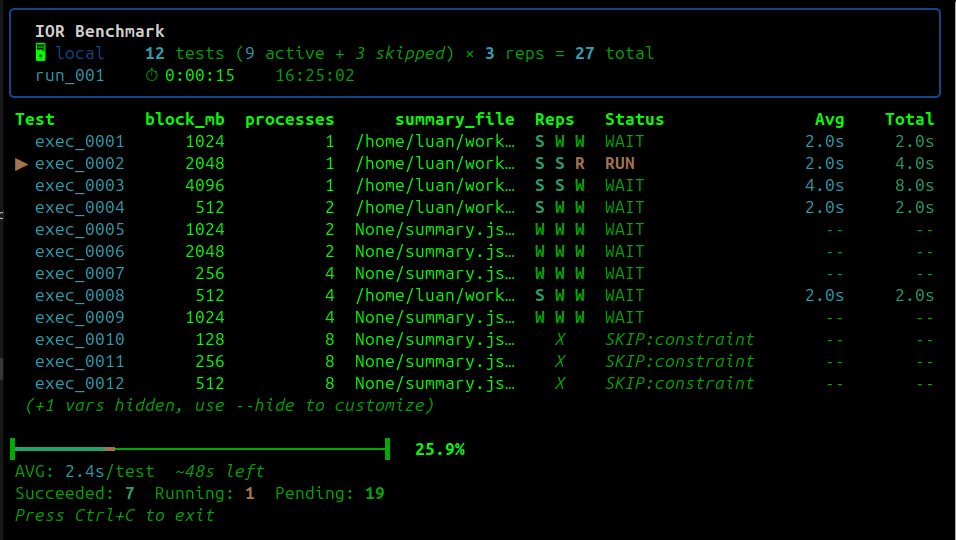
Watch mode provides real-time monitoring of benchmark execution progress as a live-updating table.
Enabling Watch Mode
iops find ./workdir/run_001 --watch # or -w
Requirements
Watch mode requires the rich library:
pip install "iops-benchmark[watch]" # or: pip install rich
Display Features
- Progress bar showing overall completion percentage
- Status summary with counts for each status (RUNNING, PENDING, SUCCEEDED, etc.)
- Live table with execution parameters and status
- Repetition tracking showing status of each repetition (e.g.,
SSSfor 3 succeeded) - Auto-refresh at configurable intervals
- Keyboard navigation for browsing large test suites (pause, scroll, search)
Watch Mode Options
# Custom refresh interval (default: 5 seconds, minimum: 1)
iops find ./workdir/run_001 --watch --interval 2

# Watch with parameter, status, or cache filters and hidden columns
iops find ./workdir/run_001 nodes=4 --watch --status RUNNING
iops find ./workdir/run_001 --watch --hide block_size --cached yes
In watch mode, cached results are indicated with a cyan C next to the status (e.g., OK C for a cached successful result).
Displaying Metrics
Watch mode can display collected metrics (e.g., throughput, IOPS, latency) as additional columns, one per metric defined in your parser configuration. Values are averaged across completed repetitions:
iops find ./workdir/run_001 --watch --metrics # or -w -m
Filtering by Metrics
Filter executions by metric values with --filter-metric, useful for finding high-performing or problematic configurations:
# Show only results with bandwidth > 1000 MiB/s
iops find ./workdir/run_001 --watch --metrics --filter-metric "bwMiB>1000"

# Multiple metric filters (AND logic)
iops find ./workdir/run_001 --watch -m --filter-metric "bwMiB>1000" --filter-metric "iops>=5000"
Supported operators: >, >=, <, <=, =
Metric filters only match executions that have completed with metric values. Pending or failed executions without metrics are excluded when metric filters are active.
Status Indicators
In watch mode, status is displayed using compact symbols:
| Symbol | Status | Meaning |
|---|---|---|
S | SUCCEEDED | Execution completed successfully |
R | RUNNING | Currently executing |
W | PENDING | Waiting to execute |
F | FAILED | Execution failed |
E | ERROR | Error during setup |
X | SKIPPED | Skipped (constraint or planner) |
? | UNKNOWN | Status unknown |
For multiple repetitions, status is shown as a sequence (e.g., SRW means repetition 1 succeeded, repetition 2 is running, repetition 3 is pending).
Keyboard Navigation
Watch mode supports keyboard shortcuts for navigating large test suites. The current mode is shown in the header as [LIVE] or [PAUSED].
Mode Controls:
| Key | Action |
|---|---|
p | Toggle pause mode (freeze row order while status updates continue) |
q | Quit watch mode |
Navigation (available in pause mode):
| Key | Action |
|---|---|
j / ↓ / PageDown | Page down |
k / ↑ / PageUp | Page up |
g | Go to first page |
G | Go to last page |
/ | Search by test ID |
Live Mode vs Pause Mode:
- Live mode (
[LIVE]): Rows are automatically reordered by priority (RUNNING > FAILED > PENDING > SUCCEEDED), keeping active and problematic tests visible at the top. - Pause mode (
[PAUSED]): Row order is frozen so you can scroll through all tests. Status updates continue in the background. With many tests, the header shows your current position (e.g., “Showing 21-40 of 120”).
Search by Test ID:
Press / in pause mode, type the test number (e.g., 42 for exec_0042), and press Enter to jump to the page containing that test. Press Escape to cancel.
Exiting Watch Mode
Press q or Ctrl+C to exit watch mode and return to the terminal.
IOPS Metadata Files
The iops find command relies on metadata files that IOPS generates during benchmark execution. These files have the __iops_ prefix and enable fast execution lookup without parsing full result databases.
Key files used by iops find:
| File | Location | Purpose |
|---|---|---|
__iops_index.json | Run root | Indexes all executions with parameters |
__iops_params.json | Each exec folder | Stores parameter values |
__iops_status.json | Each exec/rep folder | Tracks execution status, cache flag, and metrics |
All paths in __iops_index.json are stored as relative paths, making workdirs portable: you can archive, move, or share workdirs and find will still work.
For complete documentation on all metadata files, I/O overhead considerations, and configuration options, see the Metadata Files guide.
Inspecting Archives
The iops find command can inspect tar archives directly without extracting them, useful for checking what’s inside before extraction:
iops find study.tar.gz
Output:
Archive: study.tar.gz
----------------------------------------
IOPS Version:     3.4.0
Created:          2024-01-15T10:30:00
Source Host:      login-node.cluster
Archive Type:     run
Original Path:    /scratch/user/workdir/run_001
Total Executions: 3
Checksums:        12 files

Runs:
  - run_001: "IOR Performance Study" (3 executions)


Path       Status     nodes  ppn  block_size
--------------------------------------------
exec_0001  SUCCEEDED  1      4    1024
exec_0002  SUCCEEDED  1      4    4096
exec_0003  FAILED     1      8    1024

Found 3 execution(s)
The header shows archive metadata: IOPS version, creation timestamp, source hostname, and integrity checksum count.
All filtering options work with archives:
iops find study.tar.gz nodes=4 ppn=8 --status SUCCEEDED
iops find study.tar.gz --show-command --full
For workdir archives containing multiple runs (Archive Type: workdir), the output lists each run in the header and groups executions under === run_XXX === sections, as when pointing find at a workdir.
Archiving Workdirs
IOPS has built-in support for archiving and extracting workdirs, making it easy to share benchmark results between systems or create backups. See the CLI guide for the full option reference.
Creating Archives
Use iops archive create to create a compressed archive:
# Archive a single run
iops archive create ./workdir/run_001 -o my_study.tar.gz

# Archive entire workdir with all runs
iops archive create ./workdir -o all_studies.tar.gz
IOPS automatically detects whether you’re archiving a single run or an entire workdir based on the directory structure.
Compression options:
iops archive create ./workdir/run_001 -o study.tar.gz                       # gzip (default)
iops archive create ./workdir/run_001 --compression xz -o study.tar.xz     # better compression
iops archive create ./workdir/run_001 --compression bz2 -o study.tar.bz2   # faster compression
iops archive create ./workdir/run_001 --compression none -o study.tar      # fastest, largest
Progress bar:
A progress bar is shown during creation and extraction when the rich library is installed. Disable it with --no-progress.
Extracting Archives
Use iops archive extract to restore an archive:
# Extract into a folder named after the archive (./study/)
iops archive extract study.tar.gz

# Extract to specific location
iops archive extract study.tar.gz -o ./restored_data
By default, IOPS verifies file integrity using SHA256 checksums stored in the archive. Skip verification with --no-verify.
Archive Contents
Archives include all execution directories with output files, IOPS metadata files, result files, and a manifest (__iops_archive_manifest.json) with version info, source host, run information, and SHA256 checksums. See Archive Contents in the CLI guide for the full list.
Partial Archives (Live Extraction)
When running large benchmark campaigns, you may want to extract and analyze completed tests before the entire run finishes. Use --partial to create an archive containing only filtered executions, for example to analyze partial results while a long benchmark is still running or to extract specific configurations from a large sweep.
Filtering options:
# By status - archive only successful tests
iops archive create ./workdir/run_001 --partial --status SUCCEEDED

# By parameters - archive specific configurations
iops archive create ./workdir/run_001 --partial nodes=4 ppn=8

# By cache status - archive only freshly executed (non-cached) results
iops archive create ./workdir/run_001 --partial --cached no

# By minimum completed repetitions
iops archive create ./workdir/run_001 --min-reps 1

# Combine filters
iops archive create ./workdir/run_001 --partial --status SUCCEEDED nodes=4 -o subset.tar.gz
Repetition-level filtering with --min-reps:
The --min-reps N option includes any execution that has at least N completed repetitions, regardless of whether all repetitions have finished. When using --min-reps:
- The result files (CSV/Parquet/SQLite) are filtered to include only rows from completed repetitions
- An execution is included if it has at least N repetitions with SUCCEEDED or FAILED status
- The
--min-repsflag implies--partial, so you don’t need to specify both
What partial archives contain:
- Only execution directories matching the filters
- Filtered result files (CSV/Parquet/SQLite) with rows for included executions only
- Filtered
__iops_index.jsonreflecting only included executions - Manifest metadata indicating it’s a partial archive with filters applied
Non-interference guarantee:
Partial archive creation is read-only and safe to use while benchmarks are running:
- Only reads from execution directories that have completed
- Copies and filters result files (never modifies originals)
- Creates filtered versions of metadata files in a temporary location
Use Cases
Sharing results with collaborators:
# On source system
iops archive create ./workdir/run_001 -o ior_scaling_study.tar.gz
scp ior_scaling_study.tar.gz collaborator@remote:/data/

# On remote system
iops archive extract ior_scaling_study.tar.gz -o ./shared_results
iops find ./shared_results    # Works immediately
iops report ./shared_results  # Generate report from shared data
Backing up completed studies:
# Maximum compression for long-term storage
iops archive create ./workdir --compression xz -o backup_2024.tar.xz
Extracting partial results from running campaigns:
# While benchmark is still running, extract completed tests
iops archive create ./workdir/run_001 --partial --status SUCCEEDED -o progress_snapshot.tar.gz